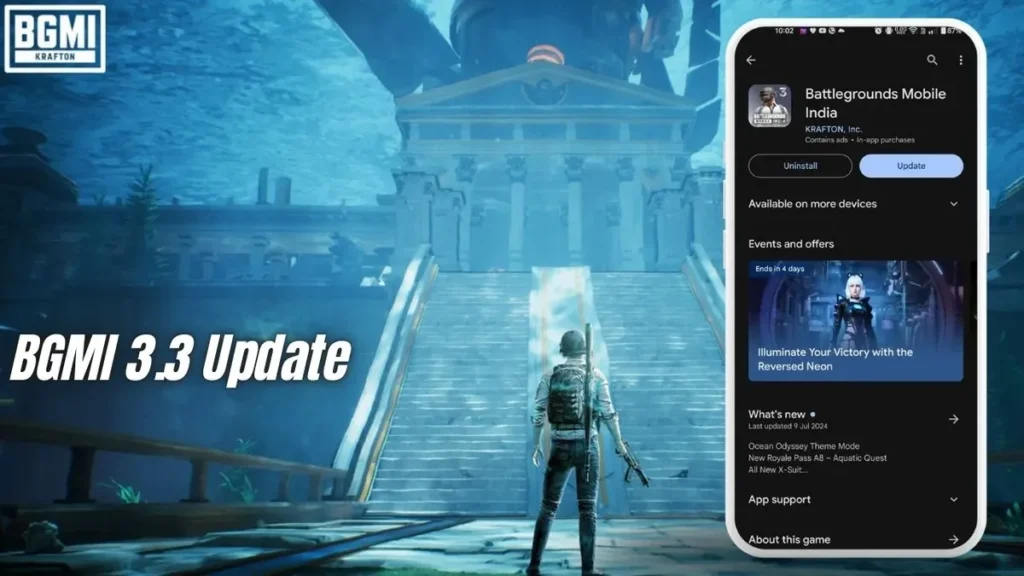
BGMI Update Stuck at 0%? Fix Download Paused on Jio, Airtel and Vi
What changed in 30 seconds: BGMI updates stall at 0% mostly because of network throttling, overloaded Play Store servers on update day, low storage, or corrupted cache. The fastest fix order: switch to a different network (or Wi-Fi), clear Play Store cache, free up 5+ GB of space, and retry during off-peak hours. Reinstall is the last resort.
Why BGMI updates get stuck at 0%
Nothing is more annoying than opening BGMI on update day, tapping update, and watching the bar sit at 0% like it’s posing for a photo. Here’s what’s usually going on behind the scenes:
- Server overload. On major update days, lakhs of players hit the download at once. Google’s Play Store servers (and BGMI’s in-game content servers) get hammered. Your download isn’t broken — it’s stuck in a very long queue.
- Network throttling. Some carriers slow large downloads during peak hours, or their route to the Play Store’s servers is congested.
- Low storage. If your phone doesn’t have enough free space, the Play Store silently pauses the download instead of showing a clear error.
- Corrupted cache. A stale Play Store cache or a half-downloaded chunk can make the update loop at 0% forever.
- Background download paused. Android’s battery saver or data saver sometimes pauses large downloads in the background without telling you.
Carrier-Specific BGMI Download Stalls: Jio, Airtel, and Vi Fixes
Not every network behaves the same on update day. Here’s what players commonly report:
- Jio: Jio users often see fast speeds normally, but on big update days the Play Store download sometimes stalls or drops repeatedly. Switching from mobile data to Wi-Fi (or vice versa) usually kicks it back to life.
- Airtel: Airtel connections tend to be steadier, but some users report the download pausing when the signal drops from 5G to 4G mid-download. If you’re on the move, wait for a stable signal.
- Vi: Vi users report the slowest update-day downloads of the three, especially during evening peak hours. Off-peak downloading (late night or early morning) makes the biggest difference here.
This isn’t about one carrier being “bad” — it’s about congestion and routing. The fix is the same regardless: change the network path or change the timing.
BGMI Update Stuck at 0%: Fixes That Actually Work (In Order)
Most players are fixed by step 1 or 2.
1. Switch networks
Toggle between mobile data and Wi-Fi. If you’re on Jio data, try a Wi-Fi connection. If you’re on Wi-Fi and it’s stuck, try mobile data. This one change fixes the majority of 0% stalls because it changes your entire route to the download servers.
2. Clear Play Store cache
Go to Settings → Apps → Google Play Store → Storage → Clear cache. (Do NOT clear data.) Then reopen the Play Store and retry. Also clear the cache for Google Play Services if the problem persists.
3. Free up storage
Check your free space: Settings → Storage. You need the update size plus a buffer — aim for at least 5 GB free for a major update. Delete unused apps, old downloads, and WhatsApp media you don’t need.
4. Retry at off-peak hours
If it’s update day evening and everything is jammed, stop fighting it. Start the download after 11 PM or before 8 AM.
5. Turn off battery saver and data saver
Settings → Battery → Battery Saver (off) and Settings → Network → Data Saver (off) during the download. These features love to quietly pause large downloads.
6. Restart the Play Store download
Cancel the stuck update in the Play Store, force-close the Play Store app, reopen it, and start again. Sometimes the download just needs a clean handshake with the server.
BGMI Download Problem → Cause → Fix: Quick Reference Table
| Problem | Likely cause | Fix |
|---|---|---|
| Stuck at 0% on Jio data | Network congestion / throttling route | Switch to Wi-Fi or another network |
| Download pauses repeatedly | Data saver or battery saver interfering | Turn off Data Saver and Battery Saver |
| Update not starting at all | Play Store cache corrupted | Clear Play Store cache, force-close, retry |
| Download fails at 80–90% | Not enough free storage | Free up at least 5 GB, retry |
| Slow download only in evening | Peak-hour congestion | Download late night / early morning |
| In-game resources stuck at 0% | BGMI content server overloaded | Pause, wait 30 min, retry; try a different network |
| “Can’t install” error | Corrupted APK chunk | Cancel, clear Play Store cache, redownload |
In-Game BGMI Resource Pack Stalls: How to Fix Them
Remember: a BGMI update is actually two downloads. The Play Store updates the app itself, and then BGMI downloads resource packs (maps, HD textures, voice packs) inside the game. If the in-game download is stuck:
- Pause and resume it from the download manager inside the game.
- Switch networks — the in-game servers are different from Play Store servers.
- If one specific pack keeps failing, skip it — it’s usually optional content like a voice pack.
When to Reinstall BGMI to Fix Updates (and When Not To)
Reinstalling BGMI is the nuclear option. It works, but it costs time (full re-download) — and make sure your account is linked first.
Reinstall only if:
– The update has failed for 24+ hours across multiple networks.
– The game crashes immediately after the update.
– The Play Store shows the update as installed but the game still asks you to update (version mismatch loop).
Before you reinstall:
1. Link your account (Google, Facebook, or Twitter/X) — check in-game under Settings → Account. Guest accounts can be lost forever.
2. Note your sensitivity settings or back them up via the cloud layout feature if you use it.
3. Uninstall, restart your phone, then install fresh from the Play Store.
If your account is properly linked, your rank, inventory, and UC are safe on the server. Only local settings and downloaded resources get wiped.
Conclusion
A BGMI update stuck at 0% is frustrating, but it’s almost always a network or carrier issue with a known fix — work through the solutions above in order and you’ll be downloading in no time. Only reinstall as a last resort. If nothing works, the issue is usually on Krafton’s end and resolves within hours.
FAQ
Q: My BGMI update is stuck at 0% on Jio but works on Wi-Fi. Why?
A: Your route from Jio’s network to the download servers is likely congested. It’s not your phone — switching networks is the correct fix.
Q: How much free space do I actually need for a BGMI update?
A: Aim for at least 5 GB free for a major update. The Play Store needs room to download, unpack, and replace files — the “update size” shown is smaller than the space actually needed during installation.
Q: The download keeps pausing by itself. Is my phone broken?
A: Almost certainly not. Check Data Saver and Battery Saver first — the most common silent pausers. Also keep the Play Store in the foreground for a bit; some phones aggressively kill background downloads.
Q: In-game resource download is stuck but the Play Store update finished. What now?
A: These are separate servers. Pause the in-game download, wait 20–30 minutes, switch networks if you can, and resume. Download only the packs you need first.
Q: Should I use a VPN to speed up the download?
A: A VPN can sometimes route around congestion, but it can also make things slower and may cause region/account issues with the Play Store. Try switching between your normal networks first.
Disclaimer: BuzzGamers is an independent, fan-run website and is not affiliated with or endorsed by Krafton, Inc. or Battlegrounds Mobile India. All game names, marks and images belong to their respective owners.