
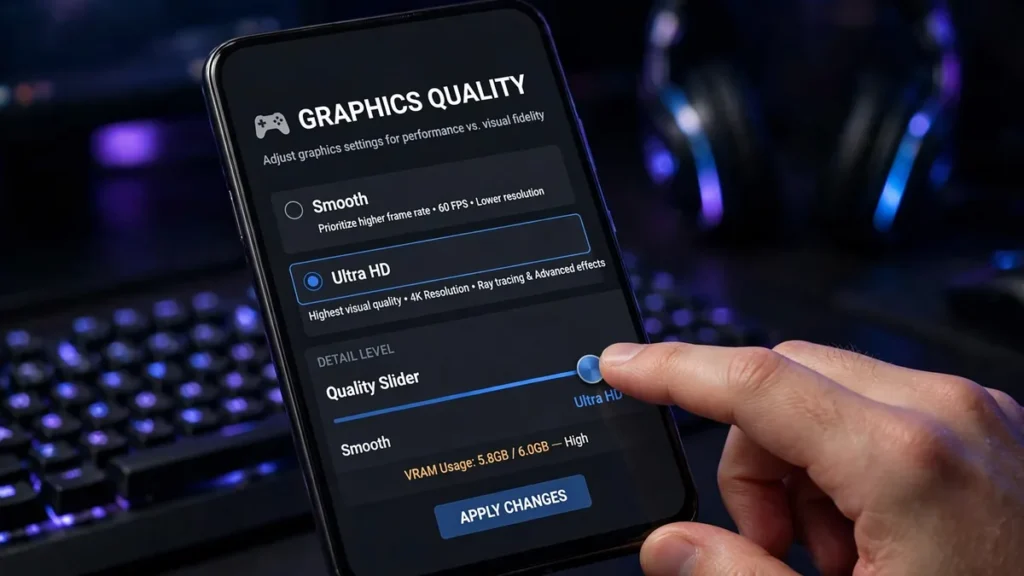
BGMI Graphics Settings Per Device Tier 2026: 4GB RAM Phones to Flagships
Introduction
If your sprays feel off no matter what sensitivity code you copy, look at your graphics menu before blaming your thumbs. I spent two months running HDR at 60 FPS, losing close fights to cheaper devices, before learning stable frames beat pretty graphics — the first match after dropping to Smooth 90, I started winning peek battles I’d lost for weeks.
That lesson is the heart of this BGMI Graphics Settings Per Device Tier 2026: 4GB RAM Phones to Flagships guide: the 30-to-60 FPS jump is transformative, 60-to-90 a clear competitive edge, 90-to-120 nice but marginal — while textures and lighting mostly affect prettiness. So the golden rule of this BGMI Graphics Settings Per Device Tier 2026: 4GB RAM Phones to Flagships guide: pick the highest stable frame rate your phone holds, then fit graphics quality under it. Caveat: exact FPS options vary by device and version, and Krafton gates top options behind device whitelists — figures here are community-tested estimates, and your phone’s menu is final authority.
BGMI Graphics Settings Per Device Tier 2026: 4GB RAM Phones to Flagships Overview
| Topic | Best graphics + frame rate settings matched to your phone’s power |
| Game | Battlegrounds Mobile India (BGMI) |
| Best For | Every BGMI player, from 4GB RAM budget phones to flagships |
| Difficulty / Time Needed | Easy — 10 minutes in settings, plus one test match |
BGMI Graphics Settings Per Device Tier 2026: 4GB RAM Phones to Flagships Explained: What This Guide Covers
Three phone tiers, one exact recipe each, plus the battery tradeoff, anti-aliasing/shadows/brightness, the auto-adjust verdict, and gameplay versus looks-only settings. This BGMI Graphics Settings Per Device Tier 2026: 4GB RAM Phones to Flagships guide prioritizes maximum stability.
Key Settings / Steps & Why They Matter — the BGMI Graphics Settings Per Device Tier 2026: 4GB RAM Phones to Flagships Core
Tier 1: Budget phones (4GB RAM) — maximum stability, zero stutter. Graphics: Smooth. Frame Rate: 40 or 60 FPS (whichever holds stable in a hot drop). Style: Classic (easiest on GPU). Anti-aliasing: Off. Shadows: Off — the menu’s biggest FPS gain, worth 10+ FPS alone on weak GPUs. Auto-adjust graphics: Off once stable. Skip the HD resource pack (bloats storage and RAM); turn off lobby animations. Budget phones throttle fast: remove the case, don’t charge while playing, take a 5-minute break hourly in summer — throttling drops 60 to 30 FPS mid-match. No 90 FPS here — stable 40–60 FPS on Smooth is genuinely competitive up to Diamond.
Tier 2: Mid-range (Dimensity 8000 / Snapdragon 7-series) — Dimensity 8200/8300 or Snapdragon 7+ Gen 2 / 7 Gen 3 holds 90 FPS, the competitive sweet spot. Graphics: Smooth or Balanced. Frame Rate: 90 FPS. Style: Classic or Colorful (Colorful helps enemies pop slightly). Anti-aliasing: Off or 2x (2x only if 90 FPS stays locked). Shadows: Off for competitive, On if looks matter and frames hold. Auto-adjust graphics: Off. Test Balanced + 90 FPS in training ground, then a real hot drop — stuttering with a 6x means back to Smooth. Don’t chase HDR: HDR + 60 FPS loses to Smooth + 90 FPS in every close fight. Same heat rules — no case, no charging.
Tier 3: Flagships (Snapdragon 8-series / Dimensity 9000-series) — Graphics: HD or HDR. Frame Rate: 90 or 120 FPS (if supported). Style: Colorful or Classic (preference). Anti-aliasing: 2x or 4x. Shadows: On. Auto-adjust graphics: Off. 90 vs 120 FPS: 120 looks buttery, but the competitive gain over 90 is small while battery drains roughly 30–40% faster (community-tested estimate) — many competitive players deliberately run 90 FPS for saner battery and heat. HDR looks great but costs battery: fine for short sessions; for long grinds HD + 90/120 FPS is smarter. Flagships throttle too — a 45-minute Indian-summer session warms any chip.
| Setup | Battery drain (est.) | Heat | Competitive value |
|---|---|---|---|
| Smooth + 40/60 FPS | Low | Low | Solid, best battery life |
| Smooth/Balanced + 90 FPS | Medium | Medium | Sweet spot for most |
| HD/HDR + 90 FPS | Medium-high | Medium-high | Great if your phone holds it |
| HD/HDR + 120 FPS | High | High | Marginal gains, big battery cost |
Estimates are community-tested and vary by device and temperature. Pick the lowest tier hitting your target FPS — the phone stays cooler and lasts longer. Never charge while playing.
Anti-aliasing smooths jagged edges — costs FPS, adds zero visibility (spotting enemies better with it on is a myth). Off on budget/mid-range, preference on flagships. Shadows are the single most expensive visual setting — turning them off is the menu’s biggest FPS gain, and competitive players often run shadowless, partly for frames and partly because shadows hide prone enemies in dark corners. Brightness is genuinely competitive: manually 70–90%, never auto — auto-brightness dims mid-fight when the phone heats — and higher brightness helps spot enemies in dark compounds and Erangel interiors.
What You Need Before Starting the BGMI Graphics Settings Per Device Tier 2026: 4GB RAM Phones to Flagships
Your phone, BGMI, and 15 minutes. Play one normal match and note where frames drop — hot drops, high-magnification scoping, or after 30 minutes — to tell weak settings from heat throttling. On a brand-new phone, leave auto-adjust graphics ON for the first few days.
Pro Tips & Tricks from the BGMI Graphics Settings Per Device Tier 2026: 4GB RAM Phones to Flagships
Auto-adjust graphics: OFF once stable. Shifting visuals mid-fight distracts and can micro-stutter — lock settings your phone holds when warm. Separate gameplay settings from looks-only: gameplay — frame rate (biggest competitive setting), brightness, style (Colorful pops enemies), shadows off (reveals prone enemies); looks-only — graphics above Smooth, anti-aliasing, lobby animations/HD packs. If a setting doesn’t change what you see or how fast you see it, it’s cosmetic.
Who Is the BGMI Graphics Settings Per Device Tier 2026: 4GB RAM Phones to Flagships Best For
Every BGMI player — every phone sits in a tier: budget players told their device “can’t compete” (it can, at Smooth + 40/60 FPS), mid-range owners on Dimensity 8200/Snapdragon 7+ Gen 2 one change from the 90 FPS sweet spot, and flagship players running HDR at 60 FPS for lobby looks while losing winnable fights. Blamed your aim for a frame drop? This BGMI Graphics Settings Per Device Tier 2026: 4GB RAM Phones to Flagships guide was written for you.
How to Apply the BGMI Graphics Settings Per Device Tier 2026: 4GB RAM Phones to Flagships Step-by-Step
- Identify your tier: 4GB budget, Dimensity 8000/Snapdragon 7, or Snapdragon 8/Dimensity 9000.
- Apply your tier’s recipe.
- Shadows off unless a flagship holding frames with them on.
- Anti-aliasing off (budget/mid) or 2x–4x (flagship).
- Brightness 70–90% manually — never auto.
- Auto-adjust OFF once stable.
- Skip HD packs and lobby animations on budget phones.
- Test training ground, then a hot drop.
- Manage heat: no case, no charging, clip-on cooler.
- Don’t touch settings for a week — constant tweaking keeps players bad.
Conclusion
Frames win fights; pretty loses them. Find your tier in this BGMI Graphics Settings Per Device Tier 2026: 4GB RAM Phones to Flagships guide, run the recipe, lock auto-adjust off, manage heat — and stop chasing numbers your phone can’t hold.
Disclaimer
Disclaimer: BuzzGamers is an independent, fan-run website and is not affiliated with or endorsed by Krafton, Inc. or Battlegrounds Mobile India.
FAQ
Best graphics for a 4GB RAM phone? Smooth, 40–60 FPS (whichever holds stable), Classic style, anti-aliasing and shadows off, auto-adjust off. Skip HD packs and lobby animations.
Is 90 FPS worth it over 60? Yes — biggest upgrade after the 30-to-60 jump; the 90-to-120 jump is much smaller. Never sacrifice stability for a bigger number.
Should auto-adjust stay on? No — it shifts visuals mid-fight when the phone heats. Lock settings that hold when warm.
Does anti-aliasing help spot enemies? No — it only smooths edges. Off on budget/mid-range; preference on flagships.
Why does FPS drop after 30 minutes? Heat throttling — remove the case, don’t charge while playing, take breaks.
HDR or Smooth + 90 FPS — which wins? Smooth + 90 FPS, every time. Frame rate decides close fights; texture quality doesn’t.