
BGMI FPS Checker: What Max FPS Does Your Phone Really Support?
Quick answer: BGMI’s max frame rate is decided by your chipset, your screen’s refresh rate, and Krafton’s device whitelist — a powerful phone can still be capped at 60 FPS if it isn’t whitelisted. An FPS checker matches your phone model against a maintained tier list (60/90/120 FPS) and tells you what to expect, then helps troubleshoot when the higher option doesn’t appear in Settings → Graphics. Always verify in-game — tiers change with updates.
How BGMI’s FPS Options Actually Work on Android and iOS
Open Settings → Graphics and you’ll see two linked settings: graphics quality (Smooth, Balanced, HD, HDR, Ultra HD) and frame rate (Low, Medium, High, Ultra, Extreme, Extreme+ / 90 FPS, 120 FPS depending on your device). The frame-rate names map roughly like this:
- Low/Medium → ~20–30 FPS
- High → ~30 FPS
- Ultra → ~40 FPS
- Extreme → 60 FPS
- 90 FPS / Extreme+ → 90 FPS
- 120 FPS → 120 FPS
Here’s the part most players miss: graphics quality and frame rate trade against each other. A phone might offer 90 FPS only on Smooth graphics, dropping to 60 on Balanced. So “my phone supports 90 FPS” really means “it offers 90 FPS at some graphics level” — usually Smooth. Also, the option only helps if your screen can show it: a 60 Hz display can’t display more than 60 frames per second regardless of the setting.
What Decides Your Phone’s BGMI FPS Tier: Chipset, Display and More
Three things, in order:
- Your chipset’s real performance. BGMI is demanding; Krafton enables higher tiers only on chips that can hold those frame rates without melting the phone.
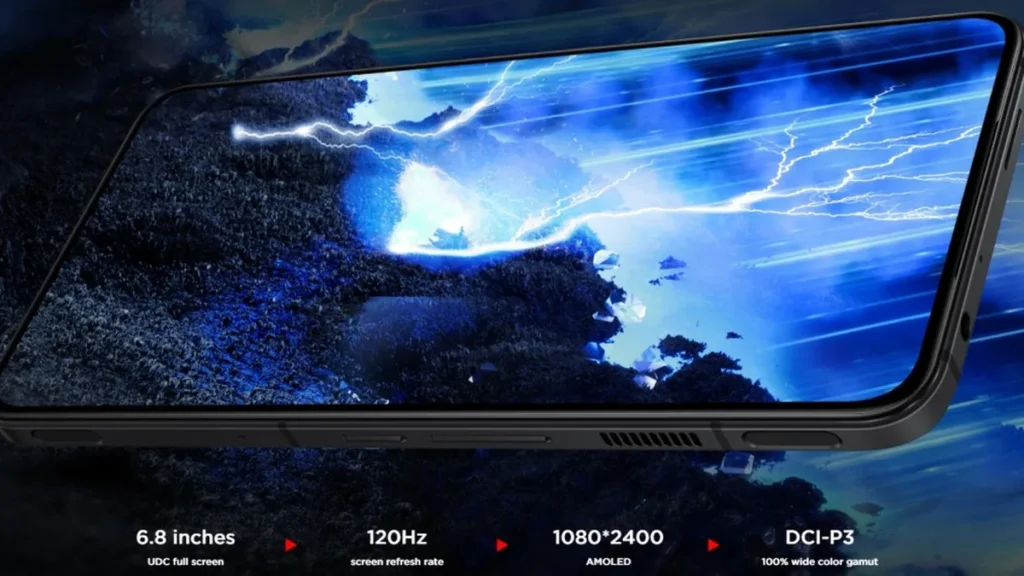
- Your screen’s refresh rate. A 120 Hz panel is a prerequisite for the 120 FPS option to make sense.
- Krafton’s device whitelist. This is the quiet one. BGMI checks your exact device model against an internal list. If your phone isn’t on it — even with a flagship chip — the higher options simply don’t appear. New phones often wait weeks or months after launch to get whitelisted, and whitelist changes ship with game updates, not phone updates.
Because of the whitelist, two phones with the same chipset can sit in different tiers. That’s why a checker based on a maintained database beats guessing from the spec sheet.
How the BGMI FPS Checker Tool Works: Inputs and Results
You type your phone’s model name, and the tool returns your max FPS tier (60/90/120), at which graphics setting it’s available, whether your screen can actually display it, and the last verified date — because tiers shift with BGMI updates. Below the result: troubleshooting for when the promised option doesn’t show.
Sample BGMI FPS Tier Table With Illustrative Phone Examples
Important: the table below is made of illustrative examples to show how the checker is organized. It is NOT an official Krafton list, and tiers change with game updates. The checker’s real database is maintained by the site team — always confirm in-game under Settings → Graphics.
| Example device | Chip tier | Screen | Example tier* |
|---|---|---|---|
| Example flagship A (2025) | Top-tier chip | 120 Hz LTPO | 120 FPS on Smooth |
| Example flagship B (2024) | Top-tier chip | 120 Hz | 90–120 FPS on Smooth |
| Example gaming phone C | Top-tier chip | 144 Hz | 120 FPS on Smooth |
| Example upper-mid D | Upper mid chip | 120 Hz | 90 FPS on Smooth |
| Example upper-mid E | Upper mid chip | 90 Hz | 90 FPS on Smooth (panel-limited) |
| Example mid-range F | Mid chip | 120 Hz | 60 FPS (whitelist-limited) |
| Example mid-range G | Mid chip | 90 Hz | 60 FPS |
| Example mid-range H | Mid chip | 60 Hz | 60 FPS |
| Example budget I | Budget chip | 90 Hz | 40–60 FPS |
| Example budget J | Budget chip | 60 Hz | 30–60 FPS |
| Example older flagship K (2021) | Older top chip | 120 Hz | 90 FPS on Smooth |
| Example older flagship L (2020) | Older top chip | 60–90 Hz | 60 FPS |
| Example tablet M | Top-tier chip | 120 Hz | 90 FPS on Smooth |
| Example new launch N | Top-tier chip | 120 Hz | 60 FPS (not yet whitelisted) |
| Example budget gaming O | Budget gaming chip | 90 Hz | 60 FPS on Smooth |
*Example only — check live in-game. Device names are deliberately generic here; the real tool lists actual models.
Notice “Example new launch N”: a brand-new flagship-tier phone stuck at 60 FPS until Krafton whitelists it. This is the single most common “why is my expensive phone capped?” case.
Why Your 90 or 120 FPS Option Doesn’t Show Up in BGMI
Run through this checklist before assuming your phone can’t do it:
- Check after a BGMI update. Whitelist additions arrive with game updates. A phone capped last season may unlock this season.
- Drop graphics to Smooth. The higher FPS options usually only appear at lower graphics settings. If you’re on HD, switch to Smooth and look again.
- Restart the game after changing graphics. Sometimes the frame-rate dropdown doesn’t refresh until a restart.
- Check for device-specific game modes. Some phones gate 90/120 FPS behind their own “performance mode” or game booster — enable it, then recheck BGMI’s settings.
- Verify your screen’s refresh rate is actually set high. If your phone is in 60 Hz battery-saver mode, some games hide the higher options.
- Beware of heat throttling. Even whitelisted phones can silently drop frames when hot. If FPS feels unstable, the tier is technically supported but your thermals aren’t cooperating — cool the phone and retest.
- Don’t trust third-party “FPS unlock” tools. They modify game files, which risks account bans. If the option isn’t there officially, wait for the whitelist.
Getting the Most From Your Phone’s BGMI FPS Tier
- Competitive players: lowest graphics you tolerate at max FPS. Smooth + Extreme/90/120 FPS is the ranked meta — visibility and reaction speed beat pretty shadows.
- Casual players: Balanced + 60 FPS is a fine middle ground if your phone holds it without heating.
- Battery: 90/120 FPS drains noticeably faster. For long sessions, 60 FPS stays cooler and lasts longer.
- Test properly: check real frame rate in a hot-drop (Pochinki, 20 alive, smokes everywhere), not the lobby. Lobby FPS means nothing.
Conclusion
Your phone’s max BGMI FPS is decided by its chipset, display refresh rate and Krafton’s device whitelist — not by settings tweaks alone. Use the FPS checker above to find your real tier, then optimize within it instead of chasing an option your device was never meant to show.
FAQ
Does 90 FPS really make a difference over 60 FPS?
Yes, but it’s subtle until you’ve played on it a while. Motion looks smoother and tracking moving targets feels easier. Going back to 60 after a week on 90 feels choppy — that’s the real test.
My phone has a 120 Hz screen but BGMI only shows 60 FPS. Why?
Most likely the whitelist — your exact model isn’t enabled for higher tiers yet. Check after the next BGMI update, with graphics on Smooth and the phone’s refresh rate actually set to 120 Hz.
Can I unlock 90 FPS with a config file or GFX tool?
People do, but it modifies game files and carries a real ban risk. Not worth risking your account for frames your phone wasn’t cleared for.
Does higher FPS drain the battery faster?
Significantly. 90–120 FPS can cut gaming battery life by a third or more versus 60 FPS. Carry a power bank for long sessions.
Why does my FPS drop mid-match even though the option is there?
Heat. Phones throttle the chip when temperatures climb. Play in a cool room, remove thick cases, take breaks between matches, and avoid charging while playing.
Disclaimer: BuzzGamers is an independent, fan-run website and is not affiliated with or endorsed by Krafton, Inc. or Battlegrounds Mobile India. All game names, marks and images belong to their respective owners.