BGMI on iPad & Tablet 2026: Layout, Sensitivity & Settings Guide
Quick Answer: An iPad gives you a bigger field of view and easier long-range spotting, but fingers travel farther — so sensitivities must come down, and phone layouts feel cramped. This guide covers the right 4-finger tablet layout, why and how much to lower sensitivity, graphics/FPS settings for M-chip and older iPads, heat and battery management, honest accessory advice, and switching between phone and iPad without wrecking muscle memory.
- How Tablet Play Actually Differs From Phone
- Recommended 4-Finger Layout for iPad
- Sensitivity Scaling: Why Lower Is Better (The Math Feel)
- Graphics & FPS Settings: M-Chip vs Older iPads
- Heat, Battery, and Long Sessions
- Accessories: Thumb Sleeves, Triggers, Stands
- Switching Between Phone and iPad Without Ruining Muscle Memory
- FAQ
How Tablet Play Actually Differs From Phone
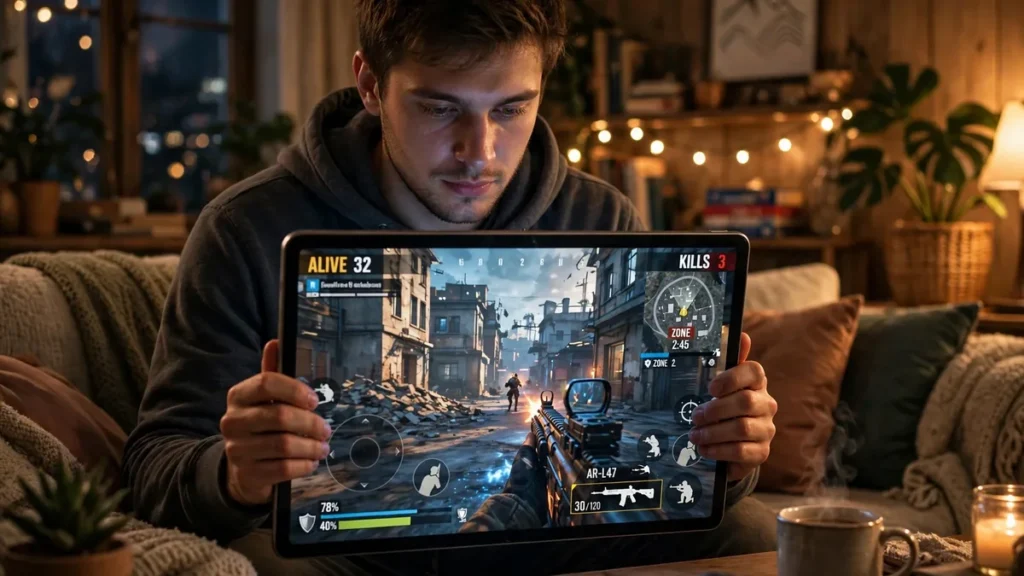
An iPad isn’t just a big phone — it changes the geometry of how you play.
- Bigger field of view. You see more at the screen edges, so spotting enemies at range — say, the fields around Yasnaya — is noticeably easier. A 6x spray at 200m feels calmer because the target takes up more pixels.
- Longer finger travel. A flick that takes a 2cm thumb drag on a phone might take 5cm on an 11-inch iPad. This is the single biggest adjustment.
- More room for buttons. On a phone every button fights for space and blocks your view. On an iPad you can spread out — which is why 4-finger layouts feel natural on tablets but cramped on phones.
- Weight and grip. An iPad is heavy. After an hour, your arms know it — how you hold or prop it matters as much as your layout.
The players who struggle on iPad almost always copy their phone sensitivity 1:1 and wonder why their aim feels wild. Everything below fixes that.
Recommended 4-Finger Layout for iPad
On a tablet, go 4-finger: left thumb (move) + right thumb (aim) + left index (fire) + right index (scope/peek). Separating fire from aim is what unlocks the tablet’s potential.
Left side
- Joystick: Bottom-left, 30–35% size. Slightly bigger than phone — your left thumb has more travel room, so a larger joystick gives finer movement control.
- Fire button (left index): Top-left, 60–70% size. Your left index rests naturally at the top edge — the fire button should be exactly where that fingertip lands.
- Scope/ADS: Just below or beside the fire button, ~50%. Try it on the right index too — test both for a day each.
Right side
- Right thumb: Pure aim area. Keep a big empty zone in the center-right — your most valuable screen real estate. Don’t clutter it.
- Scope button (right index): Top-right, ~55%. Right index taps it to ADS while the thumb aims.
- Peek left/right: Below the scope button, ~50% each. Peeking is huge on iPad because you can hold angles longer with the stable screen.
- Jump, crouch, prone: Right side below the aim zone, staggered so the right thumb reaches each without lifting the index finger. Crouch biggest of the three.
- Reload: Small, near the scope button — right index taps it between fights.
Keep transparency at 30–45% for big buttons, but don’t scatter them so far that fingers leave home positions.
Sensitivity Scaling: Why Lower Is Better (The Math Feel)
Here’s the simple version: sensitivity means how many degrees the camera turns per centimeter of finger drag. On an iPad, the same camera turn needs a longer drag — so unless you lower sensitivity, a normal thumb drag spins you 180° and you overshoot every target. Think of it as gearing: screen got bigger, so your finger’s gears need to go longer.
How much lower? A practical starting rule
Take your phone sensitivities and multiply by roughly 0.6 to 0.7. Example: phone red dot at 100 → iPad starts at 60–70. Then adjust in the Training Ground.
Tablet starting table (no gyro, 4-finger):
| Setting | iPad start value |
|---|---|
| TPP No Scope | 70–80 |
| Red Dot / Holo | 40–50 |
| 2x Scope | 35–45 |
| 3x Scope | 28–38 |
| 4x Scope | 24–34 |
| 6x Scope | 16–24 |
| 8x Scope | 12–18 |
ADS sensitivity: each scope ~5 below its camera value. Gyro players: halve your phone gyro values — the bigger screen amplifies every tilt.
The golden test: in the Training Ground, do a 180° flick at a target. Consistently overshoot = lower by 5; can’t complete the turn = raise by 5. One value at a time.
Graphics & FPS Settings: M-Chip vs Older iPads
M-chip iPads (M1, M2, M4 and newer)
These are overkill for BGMI in the best way. Run Smooth graphics + maximum frame rate — frame rate matters far more than pretty graphics in a gunfight. You can push HDR + high FPS for nicer visuals, but competitive players stay on Smooth.
Older iPads (A-series chips, 3+ years old)
- Smooth + high FPS is the target. If frames drop after 30–40 minutes of heating, drop frame rate one notch — stable lower FPS beats stuttering higher FPS every time.
- Turn off anti-aliasing and shadows if the settings allow — they cost frames and add visual noise.
- Close all background apps before long sessions.
Universal rule: brightness at 60–70% indoors. Max brightness cooks the battery, and the screen dims itself when hot — which is worse than just starting lower.
Managing Heat and Battery During Long BGMI Sessions on iPad
Tablets handle long sessions better than phones, but heat is still the enemy — a hot iPad throttles, frames drop, and your final-zone 1v4 turns into a slideshow.
- Take the case off during ranked sessions. Cases trap heat.
- Play in a cool room, away from direct sunlight — balcony sessions at noon in May are frame-drop factories.
- Prop it up on a stand or pillow instead of your lap — airflow underneath helps, and your arms last longer.
- Charge smart: don’t game on 5% battery with a fast charger blasting heat in. If you must charge while playing, use a slower charger and moderate brightness.
- Break every 90 minutes. The device cools, your eyes reset, and your decision-making sharpens. Players who grind 5 hours straight play their worst in hour 4.
Accessories: Thumb Sleeves, Triggers, Stands
Honest pros and cons — nobody’s paying me to recommend these.
- Thumb sleeves: Pros — kill friction, huge if your fingers sweat; cheap. Cons — wear out in weeks, sizing matters. Verdict: best-value accessory for tablet players. Buy a multi-pack.
- Phone-style triggers: Pros — physical fire-button feel. Cons — most don’t fit iPads; tapping glass is faster anyway. Verdict: skip.
- Tablet stand: Pros — saves arms and neck, improves airflow. Cons — fixed angle, useless if you play handheld. Verdict: great for room play.
- Stylus: Verdict: don’t. Adds lag, kills multi-finger layouts.
Switching Between Phone and iPad Without Ruining Muscle Memory
Lots of players use iPad at home and phone outside. The fear is real: switch devices and your aim feels drunk for a week. Here’s how to keep both sharp:
- Keep the same layout logic. Same finger roles (left index fires, right thumb aims), same relative button positions. Your brain maps roles, not exact pixels — “fire is top-left” on both devices transfers fast.
- Keep the same sensitivity ratio. iPad = phone × 0.65. When you tune phone sens up by 5, tune the iPad by ~3. One rule, not two unrelated number sets.
- Warm up 5 minutes on whichever device you’re about to play ranked on. One Training Ground run recalibrates your hands.
- Pick a primary. If you play 80% on iPad, tune everything for iPad and let the phone be the casual device. Keeping both perfectly tuned doubles maintenance for little gain.
Most players feel off for 2–3 days, then both devices click.
Conclusion
Playing BGMI on iPad or tablet is a genuine advantage once you scale your sensitivity down and adapt your layout to the bigger screen. Use the 4-finger layout and settings above, and give your muscle memory a week to adjust when switching between phone and tablet.
FAQ
Do I need a new BGMI account for iPad?
No. Log in with the same account and your inventory, rank, and purchases carry over. Controls and sensitivity are per-device, so set them up fresh on the iPad.
Why does my aim feel shaky on iPad even at low sensitivity?
Usually finger friction, not sensitivity. Bigger drags = more sweat contact. Thumb sleeves fix this for most players within a day.
Can I use a keyboard and mouse with iPad for BGMI?
No — BGMI doesn’t support it, and third-party mapping tools risk account bans. Touch controls only.
My old iPad lags in hot drops like Pochinki. Fix?
Smooth graphics, drop frame rate one notch, close background apps, remove the case, lower brightness. If it still lags, rotate to edge loot instead of the busiest compounds.
Should I switch to iPad permanently or keep my phone as main?
If you play mostly at home, make the iPad your main and tune everything around it. Keep the phone for travel with the same layout logic. One primary, one casual — that’s the setup that works long-term.
Disclaimer: BuzzGamers is an independent, fan-run website and is not affiliated with or endorsed by Krafton, Inc. or Battlegrounds Mobile India. All game names, marks and images belong to their respective owners.